9 Oct 2026
Post by Seraphiel
Introduction
An unexpected black screen on your Asus laptop can be a major hindrance to your workflow and cause unnecessary stress. Prompt and effective intervention is vital to maintain your device’s longevity and seamless performance. This article will illuminate common causes of the black screen issue on Asus laptops and delineate step-by-step solutions to help you regain your laptop’s full functionality. Whether your problem originates from software glitches or hardware malfunctions, these solutions have been tailored to empower you in diagnosing and resolving the matter efficiently. Stay with us as we uncover practical troubleshooting steps and preventive strategies to ensure your laptop continues to operate reliably.
Understanding the Asus Black Screen Issue
Facing a black screen on your Asus laptop means the display is blank with no visible user interface or interaction after the device is powered on. This can stem from multiple issues, such as power supply inconsistencies, corrupted software drivers, or defective hardware elements. Grasping these potential causes will aid you greatly in diagnosing and remedying the black screen issue effectively. By pinpointing the root cause, you can apply targeted solutions, reducing downtime and swiftly getting your device back into action. Educated users are more equipped to tackle these problems head-on, allowing for minimal disruption to productivity.
Initial Diagnostic Steps and Software Troubleshooting
Before delving into complex solutions, start with some fundamental diagnostic measures.
Power and Connectivity Checks
- Verify Power Supply: It’s crucial to make sure the laptop’s power adapter is correctly connected and functioning well. Ensure the power LED indicator on your device is glowing.
- Battery Examination: Disconnect the battery and hold down the power button for about 30 seconds to clear any residual power. Insert the battery back and restart.
- Connection Firmness: Ensure all cables, including those connected to external peripherals, are properly and firmly attached.
External Display Connection
- Objective: To ascertain if the issue originates from the laptop’s screen or internal hardware.
- Link your laptop with an external monitor using an HDMI or VGA cable.
- Switch on your device and check if the display appears on the external screen.
- If there’s a display on the external monitor, the issue likely lies with the internal display rather than the central components.
After grounding your understanding and performing these checks, move on to address potential software-related causes.
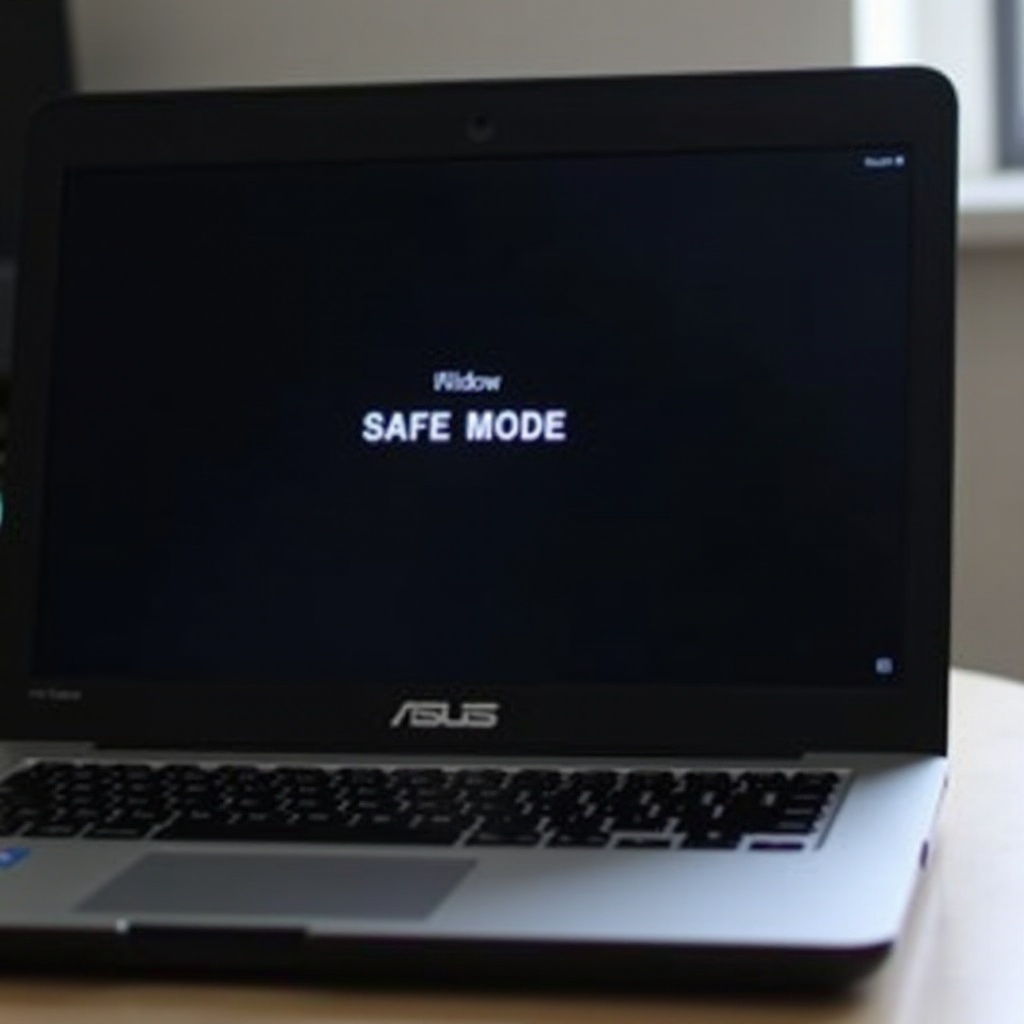
Entering Safe Mode
- Objective: Boot your laptop with minimal drivers to rule out software conflicts which might be causing the black screen.
- Power down your laptop, then power it back on, pressing F8 repeatedly until you reach the Advanced Boot Options screen.
- Select ‘Safe Mode’ and press Enter.
- Monitor if the black screen occurs while in Safe Mode.
Updating or Rolling Back Drivers
Outdated or incompatible driver software can sometimes facilitate black screen issues. To address this:
– In Safe Mode, open your Device Manager.
– Expand the ‘Display Adapters’ section and right-click your graphics driver.
– Choose to ‘Update Driver Software.’ If problems started after recent updates, opt for ‘Roll Back Driver.
Resolving Software Conflicts
Sometimes conflicting software or recent updates can induce instability in your system.
– Uninstall any newly installed programs via the Control Panel.
– Remove problematic updates under the ‘Update & Security’ settings.
– Restart the laptop to check if the problem is resolved.
Hardware Troubleshooting
Having handled software possibilities, proceed to check hardware elements that might be contributing to the issue.
Inspecting Display Cables
Loose or compromised cables may be the culprits behind display errors:
1. Power off the laptop and detach all power sources.
2. Refer to Asus guidelines to open the laptop’s casing carefully, avoiding damage to other components.
3. Closely examine and reseat the display cable connections if any looseness is observed.
Checking RAM and HDD Health
Ensure both the RAM and Hard Drive are functional to prevent them from causing black screen problems.
1. After powering down, remove the RAM from its slot and securely reintegrate it.
2. Utilize built-in diagnostics or third-party tools to scrutinize the hard drive for any corruption or errors.
Re-Testing with an External Monitor
Confirm once more using an external display to ascertain whether initial tests missed anything, further distinguishing between internal or external display faults.
Advanced Solutions
Should your laptop continue to face issues, consider exploring further sophisticated solutions.
BIOS/UEFI Adjustments
Misconfigured or corrupted BIOS/UEFI settings could be affecting the laptop’s booting process:
1. Access BIOS/UEFI settings upon booting by pressing the F2 or Del key.
2. Restore configurations to their default state, then exit.
System Restore and OS Reinstallation
As a last measure, if all else fails:
1. Execute a system restore from a previously stable state.
2. If problems persist, contemplate a complete Operating System reinstallation, backing up essential data first.
Preventive Measures
Concluding the solution-oriented section by encouraging ongoing maintenance.
Routine Maintenance Checks
Regularly inspect and clean your laptop’s ventilation and fan openings to avert overheating and possible hardware issues.
Regular Software Updates
Keep your operating system and installed software up-to-date routinely, decreasing risks of software conflicts and security loopholes.
Conclusion
Dealing with the Asus laptop black screen issue is manageable by adopting a structured approach, discerning the problem, and applying relevant solutions—be they software or hardware related. By conscientiously following this comprehensive guide, you’re equipped to effectively tackle this frequent dilemma, revitalizing your Asus laptop’s operational capacity. Committing to regular maintenance and updates can stave off similar occurrences in the future.
Frequently Asked Questions
What causes a black screen on an Asus laptop?
Common causes include power irregularities, problematic drivers, or hardware malfunctions.
Can a faulty battery cause a black screen?
Yes, a faulty battery can cause power issues leading to a black screen.
How often should I update my Asus laptop drivers?
It’s advisable to update drivers every few months to maintain compatibility and stability.