
23 Oct 2026
Post by Seraphiel
Introduction
Facing vertical lines on your computer screen can be a significant hindrance, whether for work, gaming, or entertainment. These lines not only disrupt your visual experience but often hint at deeper issues with your device. This comprehensive guide provides clear, actionable solutions to resolve and prevent vertical line issues on screens. From diagnosing causes to implementing practical fixes, we cover all the essentials to help restore your screen to peak performance.
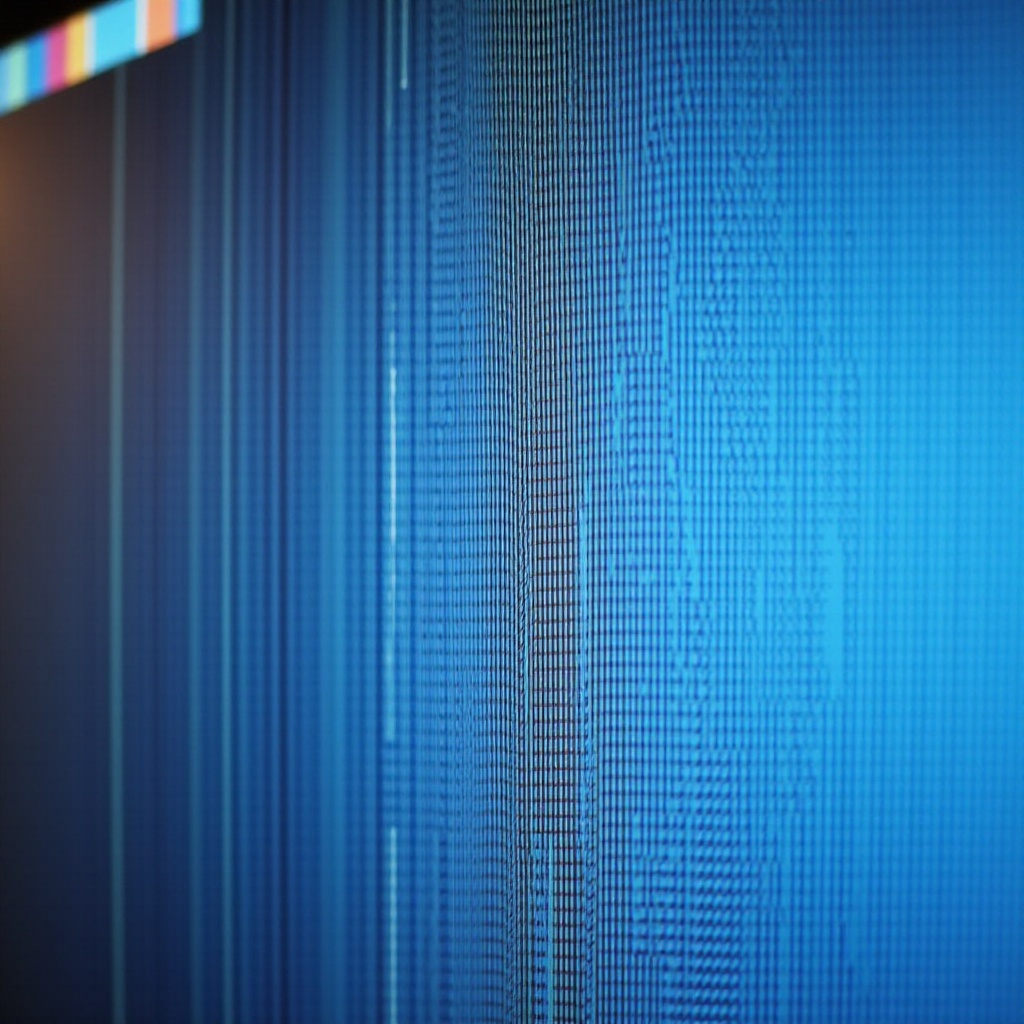
Common Causes of Vertical Lines on Computer Screens
Identifying what leads to vertical lines is crucial in eliminating them. Causes generally fall under hardware and software problems.
Hardware Issues:
– Faulty Cables: Loose or damaged cables compromise signal transmission, causing lines.
– Defective Graphics Card: An old or malfunctioning graphics card might not render images correctly.
– Internal Screen Damage: Persistent lines may signify damage within the screen itself.
Software Problems:
– Outdated Drivers: Obsolete drivers can disrupt proper display functions.
– System Glitches: Operating system malfunctions or corrupted files can impact screen performance.
– Incompatible Updates: Sometimes, new updates conflict with existing settings, causing screen issues.
Recognizing whether the issue is hardware or software-related guides the problem-solving approach.
Diagnosing the Issue
Correct diagnosis is foundational to addressing vertical line issues. Implement these checks to pinpoint the root cause.
Initial Checks
- Restart Your Computer: A simple reboot may resolve temporary glitches quickly.
- Update Your Operating System: Ensure your system is fully updated, as patches often rectify graphical problems.
Testing with Other Devices
- Use Another Monitor: Connecting your computer to a different monitor. If lines persist, your computer likely has the issue.
- Try Different Cables: Replace connection cables to rule out faulty wiring.
Inspecting Cable Connections
- Ensure Connections are Firm: Verify all cable connections to the monitor and computer.
- Check for Cable Damage: Look for signs of fraying or damage that might impair signal quality.
Following these diagnostics can clarify whether the problem stems from software or hardware.

Solutions for Software-Related Issues
If software problems are suspected, several steps can effectively tackle potential issues.
Updating Graphics Drivers
- Open Device Manager: Use the Windows search to locate it.
- Locate Display Adapters: Right-click and select ‘Update Driver.
- Proceed with Update: Follow prompts to automatically search for and install updates.
Running System Diagnostics
- Utilize Built-In Tools: Windows offers diagnostic tools that can detect hidden conflicts. Search for ‘system diagnostics’ and proceed with guidance.
Performing a System Restore
- Revert to a Previous State: If vertical lines emerged after recent changes, moving the system to a stable, previous state can help.
- Access System Restore: Found in the control panel, choose an earlier restore point and follow directions.
Software solutions can efficiently address display issues, eliminating the need for physical repairs.
Solutions for Hardware-Related Problems
When software fixes don’t suffice, hardware troubleshooting becomes necessary.
Securing or Replacing Cables
- Verify Connections: Ensure all cables are secure and tightly connected.
- Exchange Damaged Cables: Replace if you find any damage, checking for improvements in the display.
Inspecting the Graphics Card and RAM
- Re-seat Components: Turn off your computer and re-seat the graphics card and RAM.
- Test with Another Graphics Card: If feasible, test with a different card to identify potential issues.
Evaluating the Monitor
- Connect External Monitor: If your original monitor shows lines but an external one does not, monitor repair or replacement might be necessary.
Hardware checks help determine if more extensive repairs are required or if issues can be easily resolved.
Preventive Measures to Avoid Future Problems
Prevention should complement problem-solving to keep vertical lines at bay long-term.
Regular Maintenance
- Routine Cleaning: Dust buildup affects performance; clean components and screens regularly.
- Periodic Checks: Inspect cables and components for signs of wear.
Software Upkeep
- Enable Automatic Updates: Ensure your system and drivers are up-to-date to maintain compatibility and performance.
- Conduct Malware Scans: Regular antivirus checks prevent harmful disruptions.
With preventative strategies, you can enjoy a seamless computing experience, free from annoying vertical lines.
Conclusion
Vertical lines on your computer screen, while disruptive, are indicative of underlying software or hardware issues that need attention. By understanding their causes, accurately diagnosing the problem area, employing targeted solutions, and adopting preventive measures, you can efficiently resolve these issues. Plus, implementing these strategies ensures smoother and more reliable screen performance in the future.
Frequently Asked Questions
Why do vertical lines appear on the screen suddenly?
Vertical lines often indicate a disruption in the connection between your graphics card and monitor, or potentially a software glitch altering your display settings.
Can software problems cause vertical lines on the screen?
Yes, outdated or corrupt graphics drivers or system errors can lead to vertical line display issues on your screen.
How can I prevent vertical lines from reappearing on my monitor?
Regular maintenance, keeping your software up-to-date, and ensuring all hardware connections are secure can help prevent the reappearance of vertical lines.