
17 Apr 2026
Post by Seraphiel
Introduction
Resetting your Surface tablet to factory settings can swiftly resolve software issues and restore optimal performance. Whether your device faces persistent software glitches, runs slower than usual, or you’re planning to pass it on, resetting it to its original state can be beneficial. This detailed guide will lead you through the reset process, ensuring each step is easy to follow.
Understanding the Relevance of a Factory Reset
A factory reset returns your Surface tablet to its out-of-the-box condition. This means all personal data, installed applications, and customized settings will be erased. By doing so, you can eliminate chronic software problems, erase potential malware, and refresh the system performance. Comprehending these advantages prepares you for how to go about the reset procedure efficiently.
Preparing for the Factory Reset
Before initiating a reset, certain preparatory steps are crucial:
- Backup Essential Data: Securely store critical files on an external drive or cloud-based service like OneDrive or Google Drive to prevent data loss.
- Verify Microsoft Account Credentials: Ensure you have access to your Microsoft account information, which is essential for re-authentication after the reset.
- Fully Charge Your Device: To prevent interruptions during the reset, ensure your tablet is fully charged and connected to a power source throughout the process.
With these preparations in place, you’re equipped to proceed with the reset confidently.
Step-by-Step Guide to Factory Resetting Your Surface Tablet
Here’s how to proceed with a factory reset on your Surface tablet:
- Accessing the Settings Menu:
- Click on the ‘Start’ menu and navigate to ‘Settings’.
-
Proceed to ‘Update & Security’.
-
Navigating to Recovery Options:
- Within ‘Update & Security’, select ‘Recovery’.
-
Click on the ‘Reset this PC’ option and choose ‘Get started’.
-
Initiating the Factory Reset Process:
- Opt for ‘Remove everything’ to perform a complete reset.
- Follow the prompts to begin the reset process, ensuring your device remains connected to power to avoid any mishaps.
Following this methodology ensures you conduct the reset process smoothly, reducing the chance of complications.
What to Expect During the Reset Process
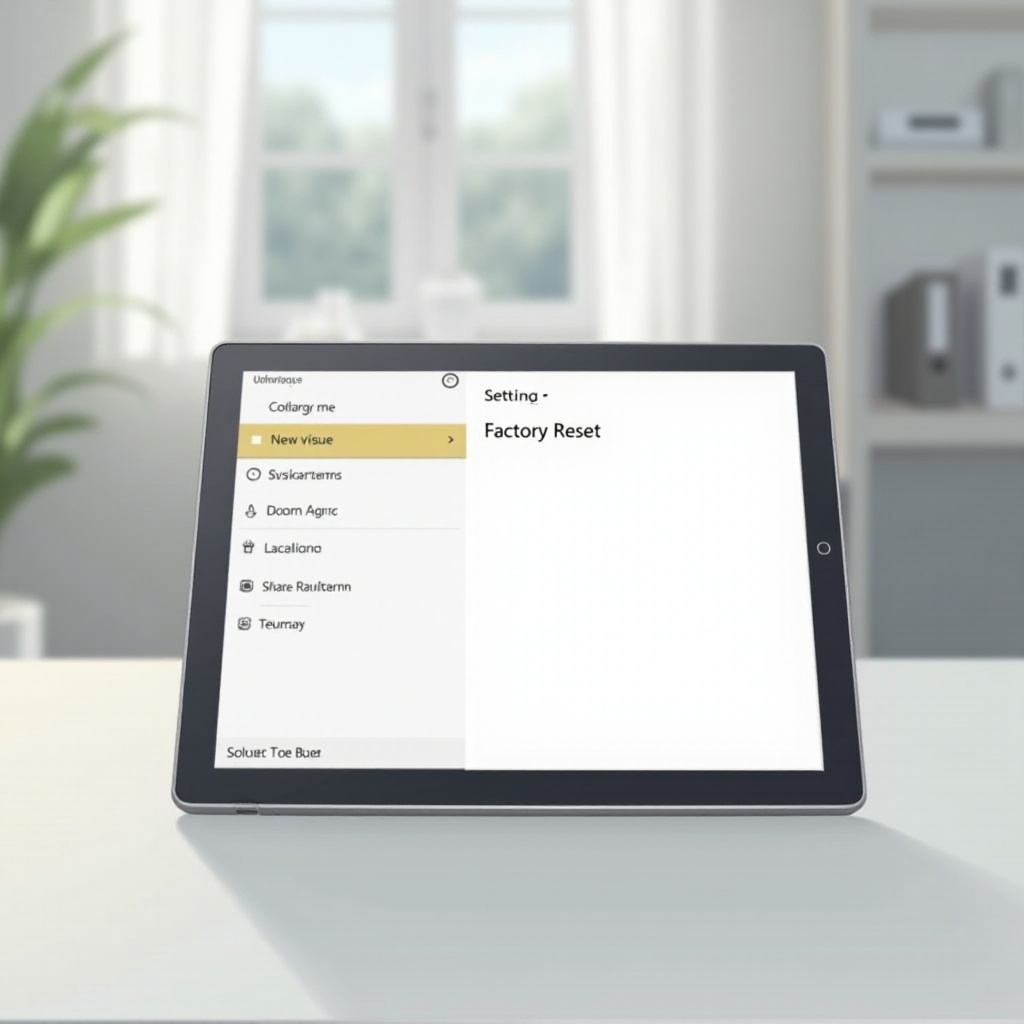
During the reset, your Surface tablet will restart and display a progress screen. The duration may range from several minutes to over an hour, contingent on the tablet’s specifications and stored data. Patiently allow the process to complete without interruption to prevent errors leading to further troubleshooting.
Setting Up Your Surface Tablet Post-Reset
Once the reset is complete, setting up your device is your next move:
- Reinstalling Apps: Access Microsoft Store or your external backup to reinstall frequently used applications.
- Configuring Personal Settings: Customize your settings by adjusting preferences such as language, date, time, and other personalizations.
- Reconnecting to Wi-Fi Networks: Re-enter network credentials to reestablish internet connections.
This post-reset phase enhances user experience by tailoring settings and applications to your preference, while also optimizing device performance for the future.
Troubleshooting Common Issues Post-Reset
Should issues arise after performing a factory reset, consider these solutions:
- Resolving Reset Freezes: If your tablet freezes, a hard reboot may be necessary. Press and hold the power button till the device powers off, then restart.
- Recovery Options for Lost Data: Use backup software to restore lost files or consult professional data recovery services if backups were not made.
- Contacting Support if Needed: Persistent problems may require Microsoft Support intervention, where specialists can provide advanced troubleshooting assistance.
Troubleshooting ensures that your device operates effectively after resetting, providing a seamless user experience.
Conclusion
Resetting your Surface tablet to factory settings is a logical solution for addressing persistent software issues and preparing the device for new users. By following these steps carefully, you ensure a smooth reset process, resulting in a refreshed device ready for optimal performance.
Frequently Asked Questions
Will resetting my Surface tablet delete Microsoft Office?
Yes, a factory reset will remove all installed programs, including Microsoft Office. Reinstallation will be required.
How often should I perform a factory reset on my Surface tablet?
Perform a factory reset only when necessary, such as addressing tough issues or before transferring ownership. Frequent resets are not recommended.
Can I recover my data after a factory reset?
Recovering data post-reset is challenging. It’s important to use a backup system to safeguard data before performing a reset.