13 Nov 2026
Post by Seraphiel
Introduction
ThinkPads stand out for their robustness and adaptability. A significant advantage of owning an upgradeable ThinkPad is the ability to customize performance according to personal needs. This flexibility ensures that the device remains a valuable tool for years to come, reducing the necessity for frequent replacements. Exploring upgradeable components and understanding their impact is key to maximizing your ThinkPad’s lifespan.
Understanding ThinkPad Upgradeability
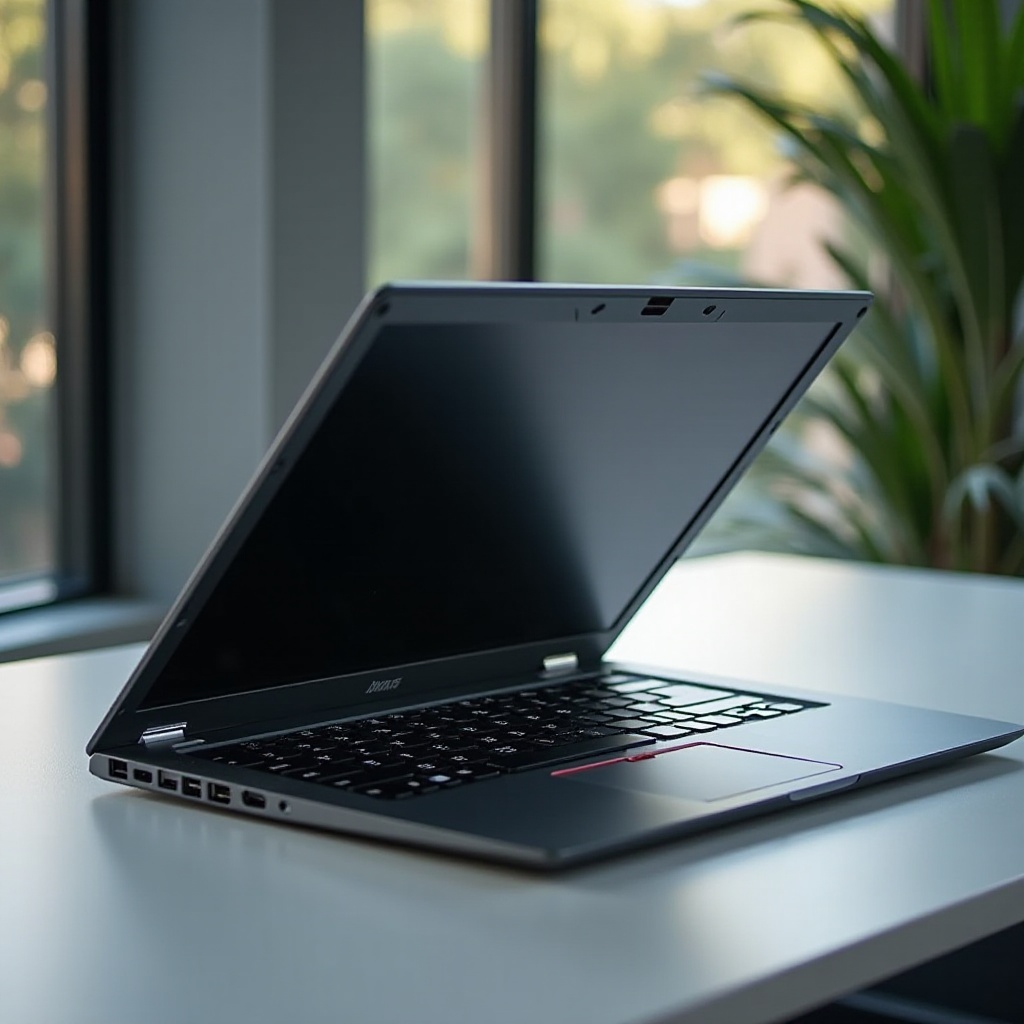
Knowing what can be upgraded in your ThinkPad is crucial to improving its longevity and performance.
– Key Components Suitable for Upgrade: ThinkPads offer several opportunities for upgrades, primarily focusing on RAM, storage, and batteries. These components significantly affect speed, storage capacity, and overall efficiency.
– Benefits of an Upgradeable Laptop: Owning an upgradeable ThinkPad means you can keep up with technology advancements without major investments. It enhances performance while being cost-effective over the long term.
After understanding the potential for upgrades, the next step is identifying components that yield the best improvements.
Top Upgradeable Components for Your ThinkPad
Selecting the right components can dramatically boost your ThinkPad’s performance.
– RAM Upgrades: Increasing RAM boosts system speed and multitasking capabilities. More RAM allows smoother operation under heavy software loads.
– Storage Options: SSD vs. HDD: Transitioning from an HDD to an SSD offers faster data access and reduced boot times, making SSDs the preferred choice for superior performance.
– Battery Replacement and Maintenance: A new battery can reinvigorate your device’s autonomy, vital for mobility and productivity.
Knowing which components to upgrade lays the groundwork for executing these improvements efficiently and safely.
A Step-by-Step Guide to Upgrading Your ThinkPad
Enhancing your ThinkPad involves careful planning and execution.
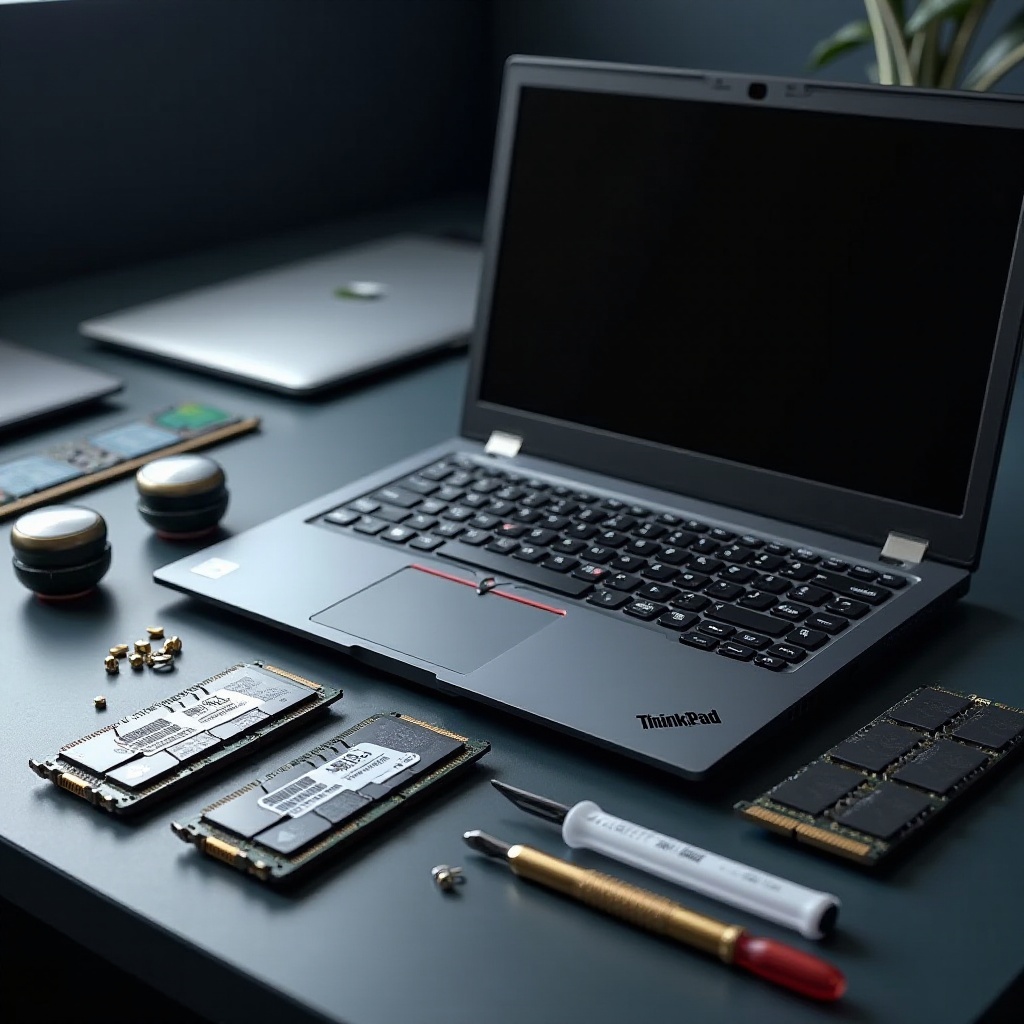
1. Preparing Your ThinkPad: Begin by backing up important data. Ensure your laptop is powered off, then gather necessary tools, including a small precision screwdriver and any new components.
2. Tools and Safety Precautions: Use an anti-static wrist band to prevent static damage and have a clean, well-lit workspace.
3. Detailed Upgrade Process:
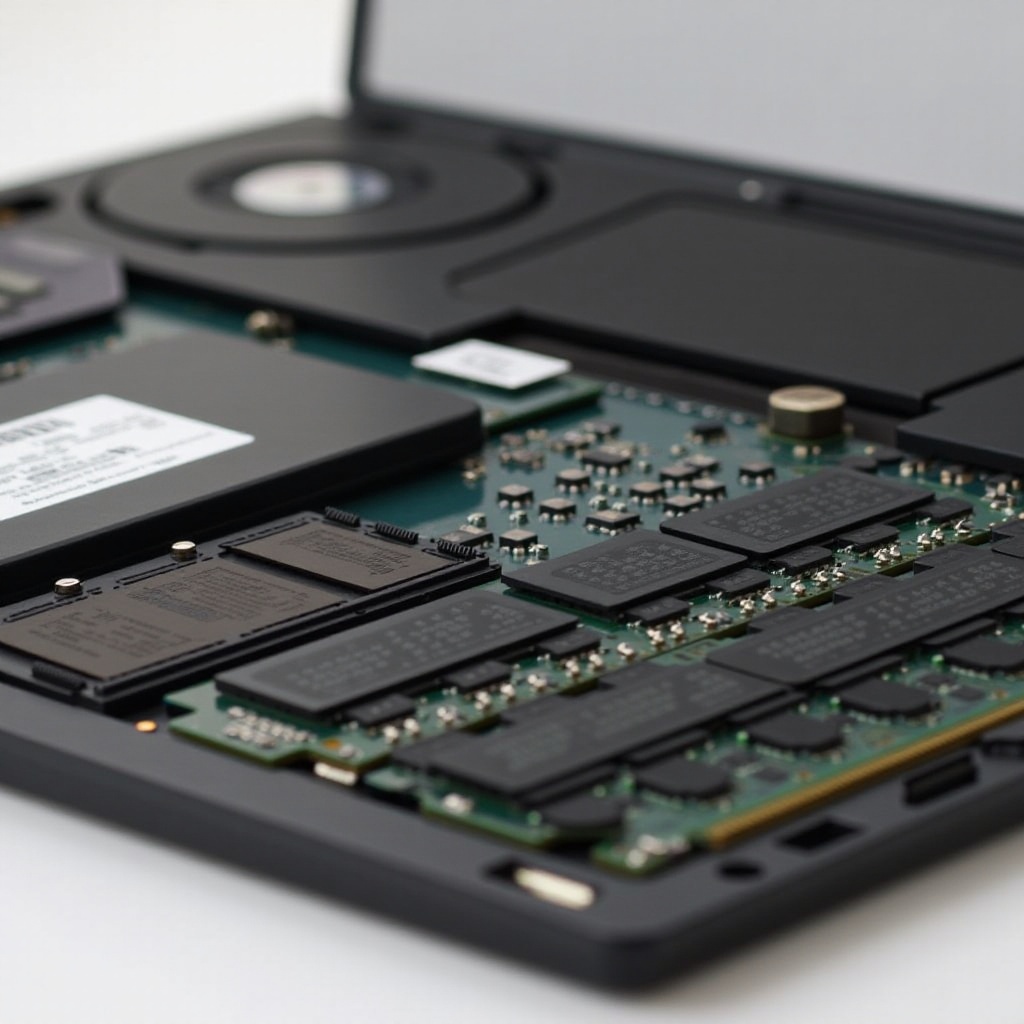
– For RAM: Open the access panel, remove existing RAM, and install the new sticks, ensuring they are properly seated.
– For Storage: Replace the existing HDD with your new SSD within the storage bay, securing it properly.
– For Battery: Disconnect the old battery and secure the new one using existing plugs and screws.
Following these steps ensures your upgrades are both safe and effective. Choosing appropriate components is just as crucial.
Choosing the Right Parts for Your Upgrade
Ensuring compatibility and quality is vital for effective upgrades.
– Compatibility Considerations: Verify parts against your ThinkPad model specs to confirm compatibility, using manufacturer websites for guidance.
– Recommended Brands and Suppliers: Opt for reliable suppliers and brands like Crucial, Samsung, and Kingston to ensure lasting performance.
Choosing the right parts not only guarantees a successful upgrade but also contributes to the laptop’s overall longevity.
The Long-Term Benefits of Upgrading Your ThinkPad
Investing in your ThinkPad’s potential offers numerous future benefits.
– Enhanced Performance and Speed: Upgrades help your ThinkPad handle modern applications efficiently, ensuring smooth multitasking and operation.
– Increased Lifespan and Cost Savings: Regular upgrades can delay the need for new purchases, significantly reducing costs over time while maintaining optimal performance.
The ability to upgrade effectively transforms your ThinkPad into a long-term investment, providing both immediate and enduring advantages.
Conclusion
Upgrading your ThinkPad strategically maximizes its capabilities and extends its usability. By following the right processes and selecting suitable components, you can significantly enhance your device, ensuring it remains a valuable asset for the long haul.
Frequently Asked Questions
Can I upgrade the graphics card on my ThinkPad?
Most ThinkPads do not allow graphics card upgrades as they are typically integrated into the motherboard.
How often should I upgrade the RAM in my laptop?
Consider upgrading RAM every few years or when you notice performance lag to keep your laptop running smoothly.
What is the average cost of upgrading a ThinkPad?
Depending on the components, upgrading can cost between $100 and $300, including professional installation if required.