
26 Dec 2025
Post by Seraphiel
Introduction
Streamlining your tech setup is crucial for staying productive in our fast-paced world. AirPod Pros provide excellent sound quality, and Chromebooks offer efficient computing solutions, but pairing these devices can sometimes be tricky. This guide will help you connect your AirPod Pros to a Chromebook, ensuring a smooth audio experience whether you are working, studying, or enjoying entertainment.
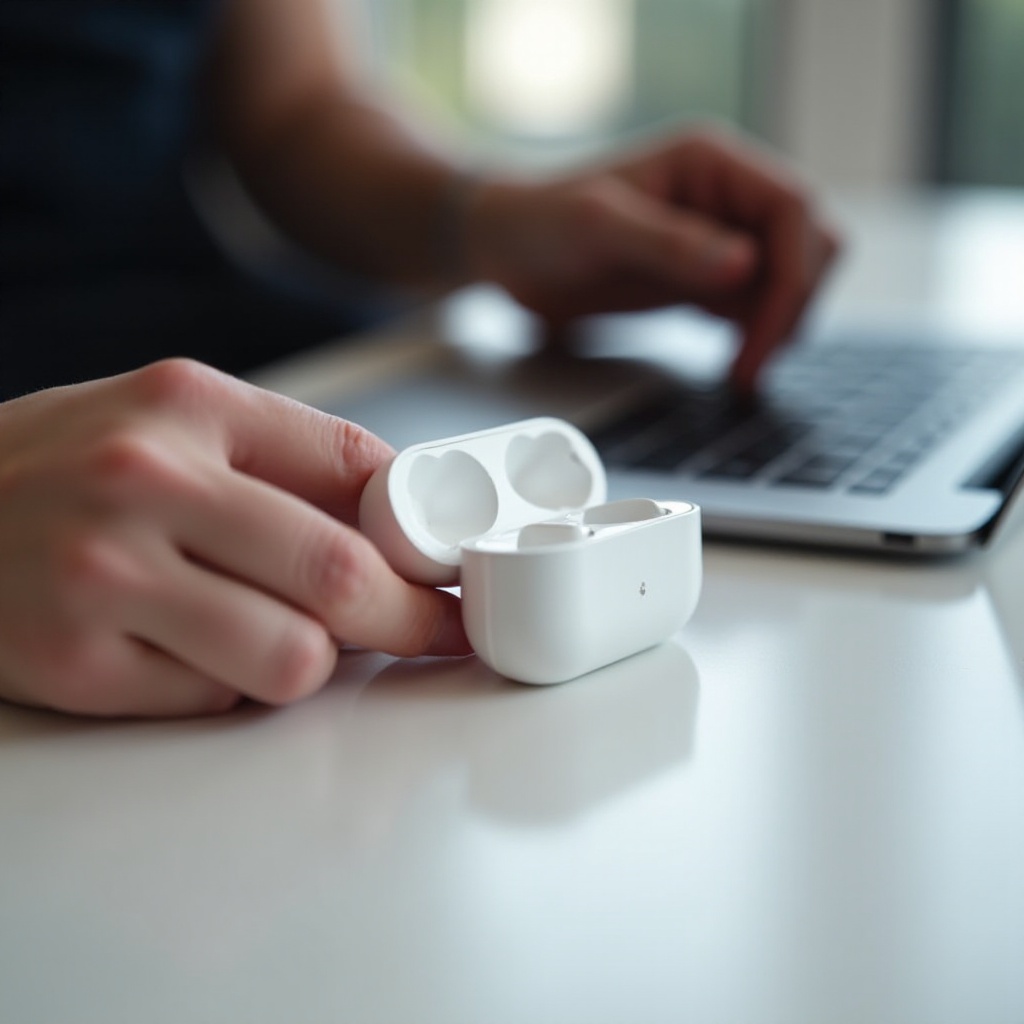
Understanding Your Devices
Before you dive into the connection process, familiarize yourself with both your AirPod Pros and your Chromebook to ensure a successful pairing.
Overview of AirPod Pros
AirPod Pros are renowned for their active noise cancellation, superb sound quality, and streamlined design. These earbuds are compatible with non-Apple devices via Bluetooth, allowing broader usability beyond the Apple ecosystem.
Understanding Chromebook Functionality
Chromebooks are lightweight laptops running Chrome OS, designed for speed and simplicity. Many models support Bluetooth, facilitating the connection with various wireless audio devices, including AirPod Pros.
The Advantage of Combining AirPod Pros with Chromebook
Pairing these devices transforms your Chromebook into a mobile audio powerhouse, perfect for important meetings, online lectures, or casual media consumption.
Having insight into both devices prepares you for the next step: setting them up correctly for pairing.
Preparing for Pairing
Proper preparation is essential for a smooth connection between your AirPod Pros and Chromebook.
Charging Your AirPod Pros
Ensure your AirPod Pros are charged before pairing. Place them in their charging case and connect to power as needed to avoid interruption during the process.
Updating Your Chromebook’s Software
Keeping your Chromebook’s OS updated guarantees access to the latest Bluetooth features and fixes. Check for updates by clicking on the settings icon and selecting ‘About Chrome OS’. Install the available updates for smooth operation.
Enabling Bluetooth on Your Chromebook
Make sure Bluetooth is switched on by clicking on the status area at the bottom right of your screen and toggling the Bluetooth setting to ‘On’.
With devices prepared, you are ready to proceed with the actual pairing process.
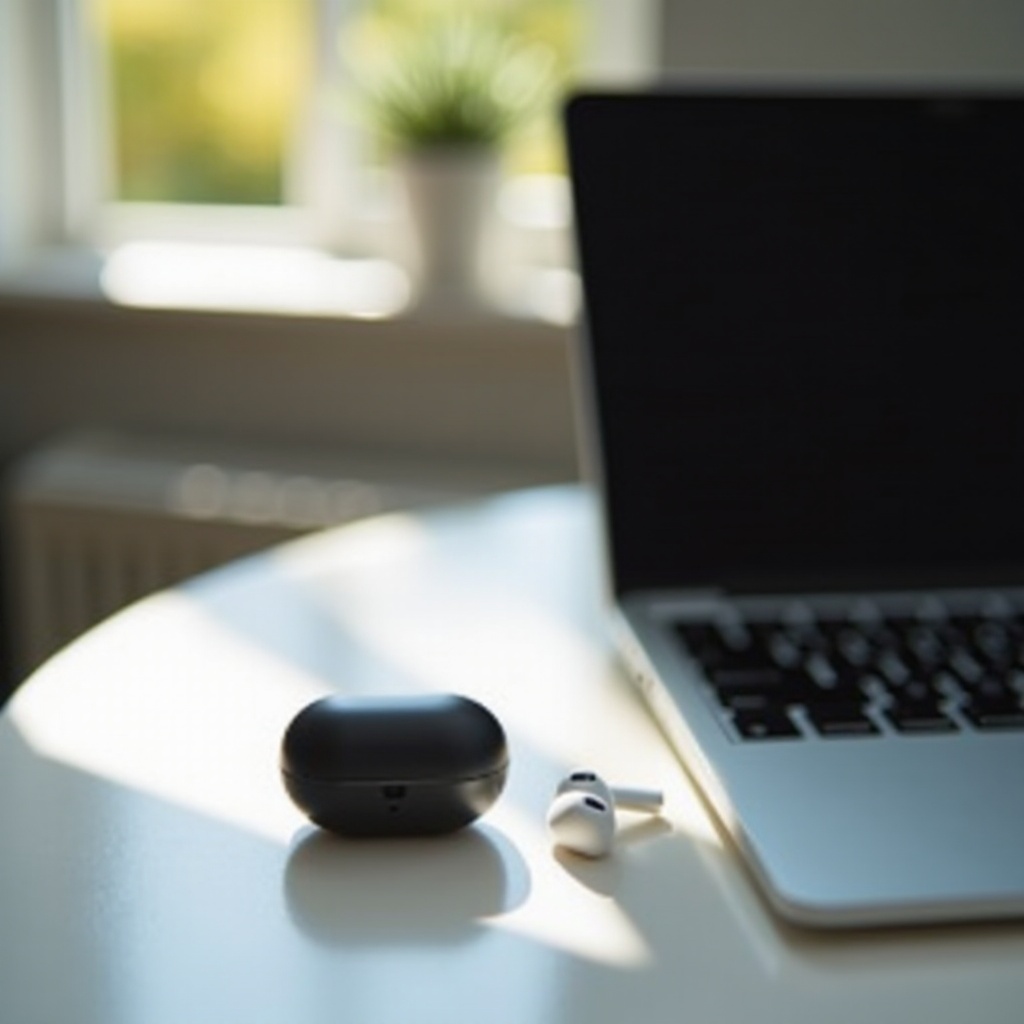
Step-by-Step Guide to Pairing
Follow these steps to connect your AirPods and Chromebook effectively.
Activating AirPod Pros for Pairing
- Open the lid of your AirPod Pro case with the earbuds inside.
- Press and hold the button on the back of the case until the LED indicator flashes white, indicating it’s ready to pair.
Navigating Chromebook Bluetooth Settings
- Click the status area in the lower right corner of your Chromebook screen.
- Select the Bluetooth icon to enter the settings menu.
- Wait as your Chromebook scans for available Bluetooth devices.
Completing the Pairing Process
- Locate ‘AirPod Pros’ in the list of available devices.
- Click on the listing to initiate the connection.
- Once paired, you’ll see a notification on your screen.
After the initial connection, let’s address any issues you might encounter, ensuring continuous enjoyment of your devices.

Troubleshooting Common Issues
Occasionally, you may face challenges keeping your devices connected. Here’s how to resolve them.
Fixing Connection Failures
If your AirPods disconnect, ensure there is no obstruction between them and your Chromebook. Reduce interference by distancing your setup from other Bluetooth devices.
Solving Sound Quality Problems
Poor sound quality might be fixed by adjusting Chromebook audio settings. Go to the sound options and ensure AirPods are selected as the default output device.
Maintaining a Stable Connection
Keep AirPods updated by occasionally syncing them to an Apple device to receive firmware updates, which can enhance connectivity.
With troubleshooting tips in place, you can shift your focus to maximizing your audio experience.
Enhancing User Experience
Harness the full potential of paired AirPods and Chromebook with these insights.
Optimizing Audio Settings
Access your Chromebook’s sound settings to adjust audio levels and tailoring sound to your preference, ensuring a superior listening experience.
Leveraging Additional AirPod Pro Features
Explore active noise cancellation and other significant features of AirPods that improve your listening session on non-Apple devices.
Exploring Third-Party Enhancements
Consider utilizing third-party apps available in the Chrome Web Store for added audio customization and functionality.
Expanding your audio experience brings us to wrap up our comprehensive pairing instructions.
Conclusion
Pairing AirPod Pros with your Chromebook is straightforward when you know the steps. By following this guide, anyone can enjoy high-quality wireless audio as part of their daily routine. Keep your devices updated and fully explore their features to elevate your experience and productivity.
Frequently Asked Questions
Why won’t my AirPod Pros connect to my Chromebook?
Ensure Bluetooth is enabled and the AirPods are in pairing mode. If issues persist, restart both devices and try again.
Can I use voice commands with AirPod Pros on a Chromebook?
Chromebooks may not support Siri, but Google Assistant can be used for voice commands on the Chromebook itself.
How do I reset my AirPod Pros for better connectivity?
To reset them, press and hold the button on the case until the light flashes amber, then white. Re-pair them afterward.