10 Apr 2026
Post by Seraphiel
Introduction
The Amazon Firestick is revolutionizing how we consume digital content, offering seamless streaming directly to your TV. However, there’s more to this versatile device than meets the eye. By connecting a Firestick to your computer, you can expand its functionality significantly. This guide will walk you through the process, showcasing the potential benefits and providing troubleshooting tips to ensure a smooth setup.
Why Connect Your Firestick to a Computer?
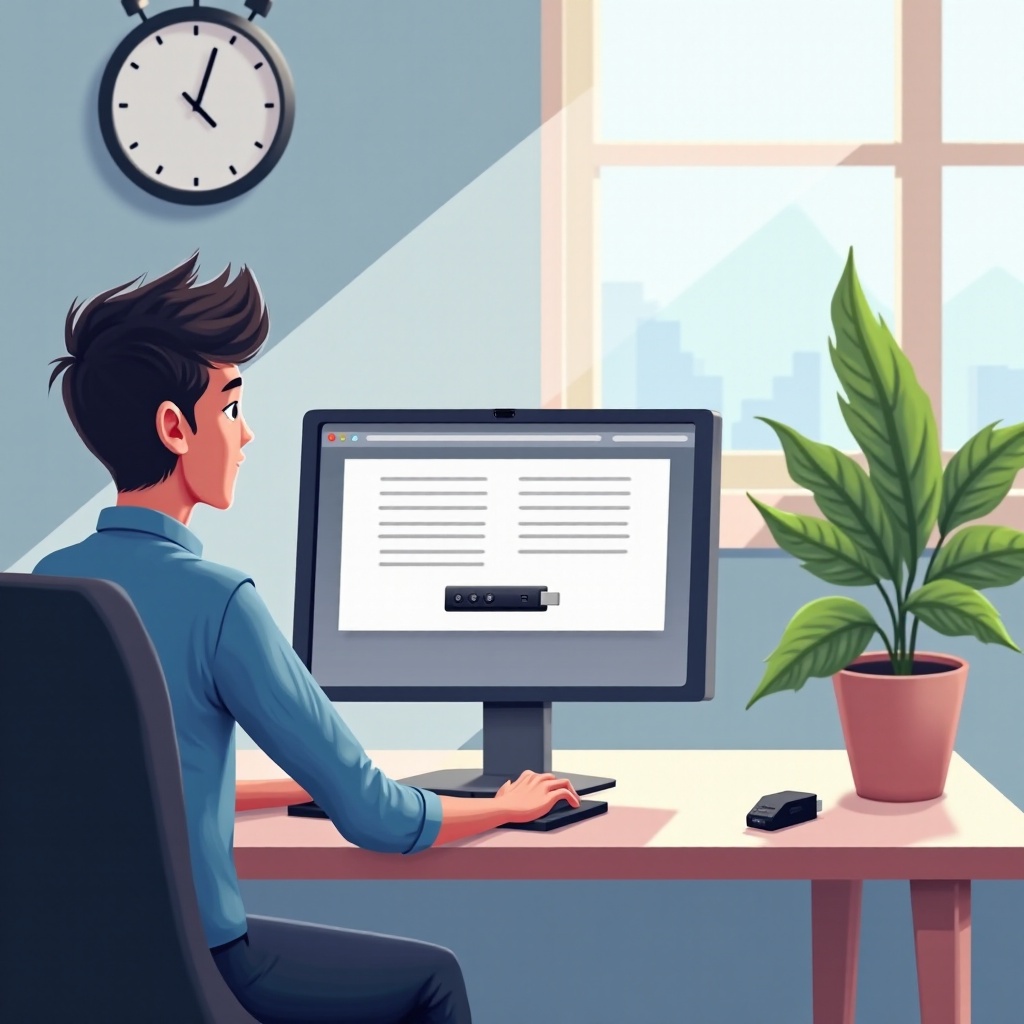
Linking your Firestick to a computer opens up myriad opportunities for increased flexibility and enhanced multimedia experiences. Imagine streaming your favorite shows on a larger computer monitor, or integrating applications across devices in a business setting. This setup is particularly advantageous for those who prefer larger displays or need dual-screen capabilities for work and play. With everything set up correctly, the Firestick can broaden your approach to digital content.
Necessary Equipment and Software
Before diving into the connection process, having the right equipment and software is crucial. You’ll need:
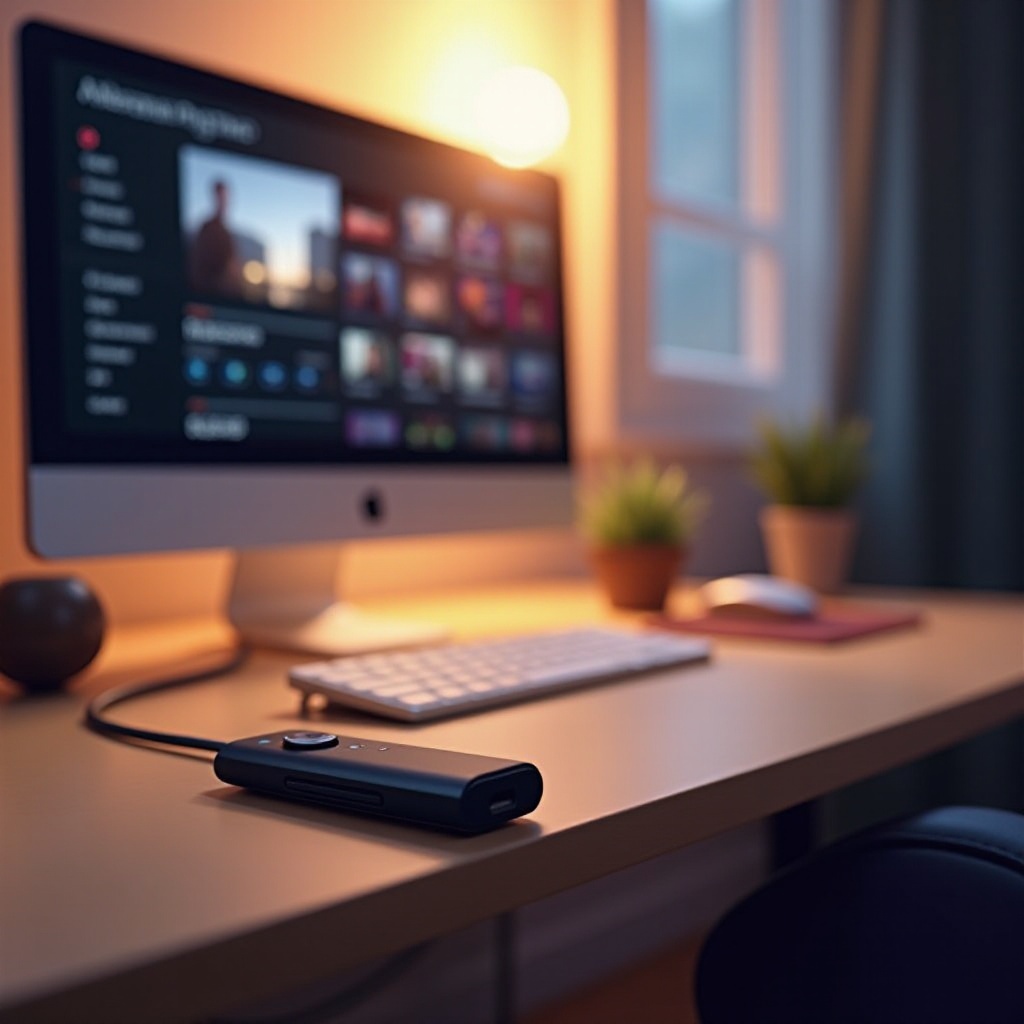
– An HDMI capture card to channel the Firestick’s HDMI output into your computer via USB.
– Suitable software like OBS Studio to facilitate the display of your Firestick’s feed on your computer screen.
– Additional adapters or cables, depending on your computer’s available ports, to ensure everything connects smoothly.
Equipping yourself with these tools will prepare you for a flawless integration, enhancing the versatility of your digital setup.
Setting Up Your Firestick for First-Time Users
If you are new to using a Firestick, setting it up can seem daunting, but it’s straightforward:
1. Plug the Firestick into a TV or monitor’s HDMI port and connect it to a power source.
2. Use the remote control to navigate through initial setup prompts, such as selecting your language and connecting to Wi-Fi.
3. Ensure your Firestick is up-to-date by installing updates as they appear, which can unlock new features and improve security.
With these steps completed, your Firestick is ready to be paired with a computer, setting the stage for expanded functionality and enjoyment.
Methods to Connect Firestick to a Computer
Various methods exist to concatenate your Firestick with a computer. Each method has steps tailored to different user needs and available tools:
Using an HDMI Capture Card
- Connect the capture card to your computer using a USB port.
- Insert the Firestick into the HDMI input of the capture card.
- Open software such as OBS Studio to input and display the Firestick’s signal.
Utilizing Screen Mirroring Apps
- Ensure both your Firestick and computer are on the same Wi-Fi network.
- Install screen mirroring software, like AirPlay or Miracast, on both devices.
- Follow instructions within the app to project the Firestick feed onto your computer.
Alternative Methods and Tools
- Use an HDMI to USB adapter when an HDMI capture card is unavailable.
- Investigate whether your computer supports native screen mirroring to bypass additional software steps.
Choosing the right method depends on your particular setup and resources. Explore these options to connect successfully, whether for leisure or productivity.
Troubleshooting Common Connection Issues
Even with detailed steps, you may encounter technical hiccups. Here are solutions to common problems:
– Problem: The computer fails to recognize the Firestick.
– Solution: Check connections and ensure all adapters are plugged in correctly. Restart your devices to refresh connections.
– Problem: Audio or video streams intermittently or out of sync.
– Solution: Examine software settings and update your drivers to improve performance.
Staying proactive with updates and verifying each connection point can prevent the majority of these issues, offering a stable experience.
Enhancing Your Viewing Experience
Once connected, fine-tuning your settings can elevate your experience:
– Adjust your Firestick’s display preferences in the Settings menu.
– Use your computer’s display settings to adjust screen resolution and audio output.
– Consider additional audio enhancements via app settings for an immersive experience.
Fine adjustments can dramatically enhance the content quality, making your setup both efficient and enjoyable.
Conclusion
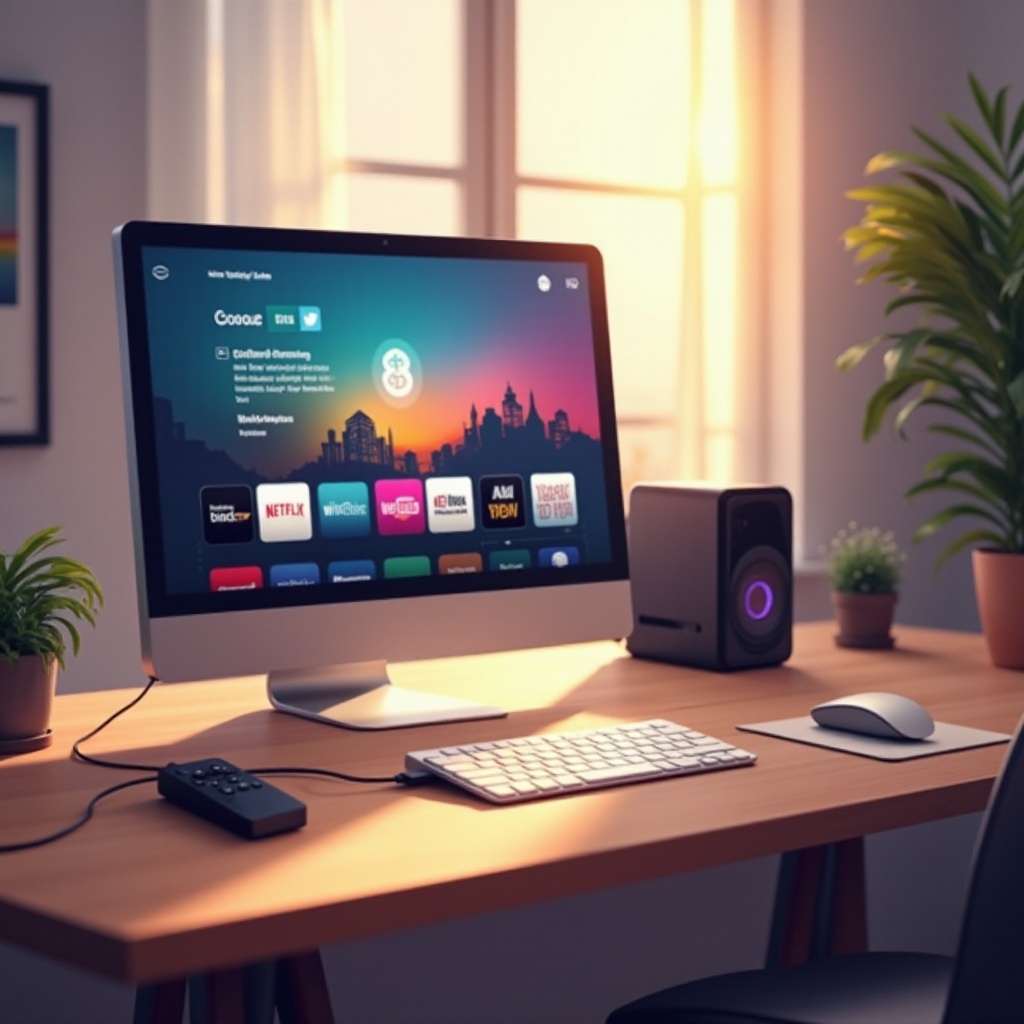
Connecting your Firestick to a computer can maximize both your entertainment and work environments. It’s an attainable goal with the right guidance, as outlined in this guide. Remember, each setup carries unique requirements, so experiment to find what works best for you. Enjoy the expanded possibilities of your digital world.
Frequently Asked Questions
Can I connect my Firestick to any laptop or computer?
Yes, as long as your computer has the necessary ports and you use the correct adapters or capture cards, you should be able to connect your Firestick.
What should I do if the Firestick isn’t recognized by my computer?
Verify that all connections are secure, restart your devices, and ensure that all necessary drivers and software are installed correctly.
Are there any risks associated with using a Firestick on a computer?
There are no significant risks if all steps are correctly followed. Ensure that your devices are protected with anti-virus software and that all downloads are from reputable sources.