
13 Mar 2026
Post by Seraphiel
Introduction
AirPlay allows Apple users to stream media from their devices to compatible screens effortlessly. Pairing a MacBook with a Roku device is a popular choice due to Roku’s versatility in turning any screen into a smart TV. This guide will provide step-by-step instructions to help you set up AirPlay from your MacBook to a Roku device, tackle common issues, and explore advanced features.
Understanding AirPlay and Roku Compatibility
The first step to successful streaming is understanding the technology involved. AirPlay is Apple’s wireless protocol that enables media streaming from Apple devices to various receivers. Roku supports AirPlay, but compatibility is key.
Make sure your MacBook runs macOS Catalina or newer, and your Roku must operate on at least OS 9.4. Confirming compatibility ensures a seamless connection, allowing you to proceed with confidence.
Preparing Your Devices for AirPlay
To initiate AirPlay, both devices need the correct setup. Follow these steps to prepare your MacBook and Roku.
Checking MacBook and Roku Compatibility
-
MacBook Compatibility: Ensure your MacBook is updated to macOS Catalina or newer. Click the Apple menu, select ‘About This Mac,’ and verify your version.
-
Roku Compatibility: Your Roku device should run on OS 9.4 or later. Go to Settings > System > About on your Roku to check.
Preparation leads seamlessly into network setup, ensuring both devices communicate effectively.
Ensuring Network Setup
Both devices must connect to the same Wi-Fi network. This step is crucial for AirPlay to function correctly. Check your Wi-Fi settings on both devices to confirm they’re connected to the same network.
Step-by-Step Guide to AirPlay from MacBook to Roku
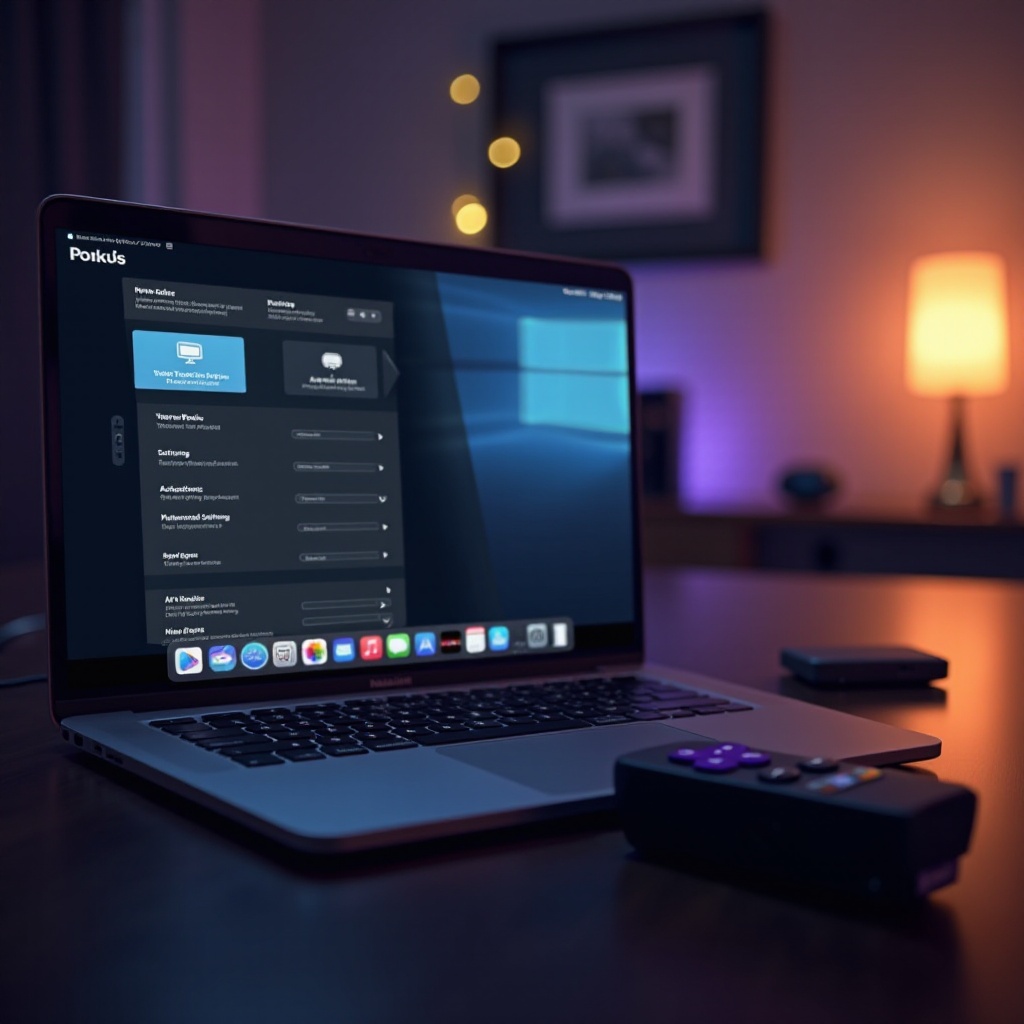
With compatibility and networking verified, you’re ready to start streaming. Follow these steps to AirPlay from MacBook to Roku effectively.
Setting Up AirPlay on MacBook
- Ensure your MacBook is on the same Wi-Fi network as your Roku.
- Click the Control Center icon in your menu bar.
- Select ‘Screen Mirroring’ and choose your Roku device.
Configuring Roku for AirPlay
- On Roku, navigate to Settings > Apple AirPlay and HomeKit.
- Make sure AirPlay is set to ‘On’ to connect with MacBook.
Initiating AirPlay and Adjusting Display Options
- Once mirroring is on, your MacBook screen should appear on your TV.
- Adjust display settings on your MacBook under System Preferences > Displays to optimize resolution and select applications for AirPlay without full screen mirroring.
With these setup steps complete, you have the foundation for a successful AirPlay experience, setting the stage for troubleshooting any issues.
Troubleshooting Common AirPlay Issues
Despite a successful setup, occasional issues might arise. Use these troubleshooting tips to resolve them efficiently.
Connectivity Problems
- Verify Network: Ensure both devices are on the same Wi-Fi network.
- Restart Devices: Restarting your MacBook and Roku can often fix minor glitches.
Audio and Video Sync Issues
- Display Settings: Check System Preferences > Sound on your MacBook to ensure audio is routed to the Roku.
- Network Stability: Slow Wi-Fi can create lags. Consider moving closer to the router or upgrading your internet plan.
Resolving these issues ensures a smoother viewing experience, setting the stage for enhanced streaming enjoyment.
Optimizing Your Streaming Experience
For a top-notch streaming experience, consider these optimization tips to enhance video and audio performance.
Enhancing Video Quality
- Stable Internet Connection: Ensure a strong Wi-Fi signal to prevent buffering.
- Compatible Formats: Use media formats supported by both MacBook and Roku for uninterrupted streaming.
Improving Audio Performance
- External Speakers: Enhance audio by connecting external speakers to your Roku TV for a richer sound.
Having optimized your streaming setup, you’re ready to explore more advanced features to further improve your experience.
Exploring Advanced AirPlay Features
Once comfortable with the basics, venture into advanced features to maximize your setup’s potential.
Multi-Device Streaming
Leverage AirPlay to stream different content to multiple Rokus, a perfect solution for family members with varied interests.
Screen Mirroring Tips
Adjust screen mirroring settings for presentations or efficient content sharing, enhancing the versatility of your MacBook-Roku integration.
These advanced features showcase AirPlay’s extensive capabilities, emphasizing the value of experimenting with configurations.
Conclusion
Streaming from MacBook to Roku via AirPlay transforms your media consumption, offering flexibility and quality. By ensuring compatibility, following our setup guide, and optimizing your streaming setup, you can enjoy a seamless experience. Dive into AirPlay’s advanced features and make the most of your media interactions.
Frequently Asked Questions
How do I update my MacBook and Roku for AirPlay compatibility?
For a MacBook, navigate to the Apple menu > System Preferences > Software Update. For Roku, go to Settings > System > System Update > Check now.
Why is my AirPlay connection dropping frequently?
Ensure that both devices are on the same Wi-Fi network and that the network signal is strong. Restarting your devices can also help stabilize the connection.
Can I use AirPlay with a Windows laptop on Roku?
No, AirPlay is exclusively for Apple devices. Windows users can look into alternative casting or mirroring options compatible with Roku.